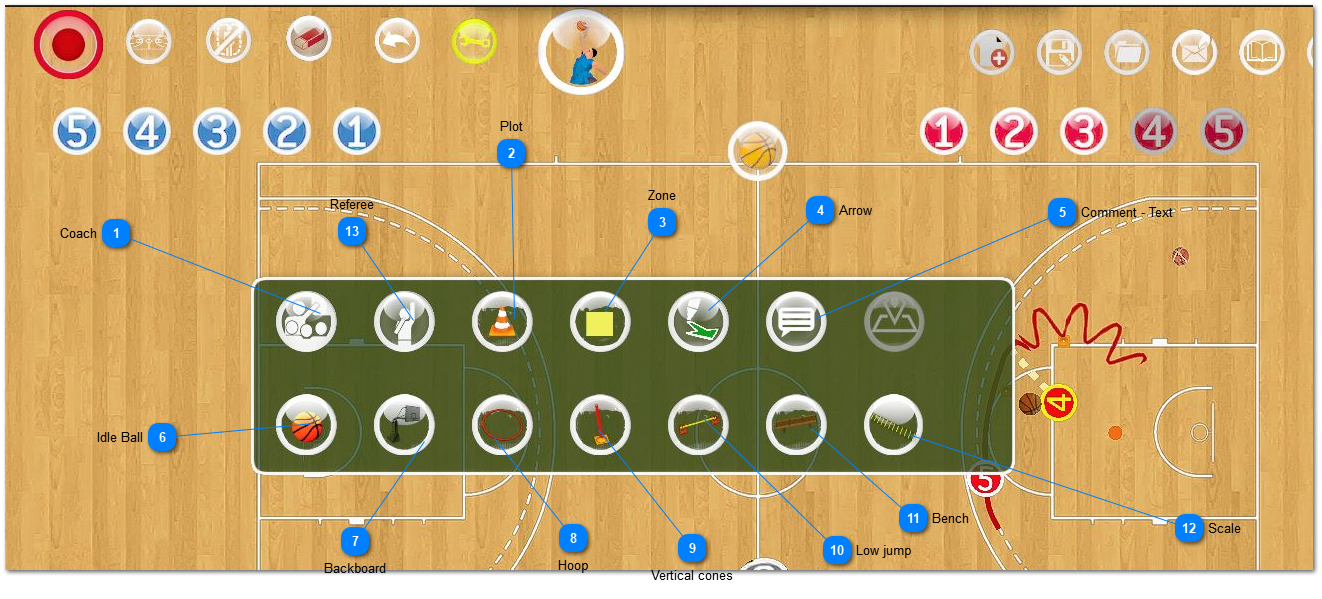
Tools menu: allows you to put cones, circles, scale, hoops but also specific objects like comments, dynamic arrows, colored zones.
Coach
Coach: click on the icon, the click on the field where the Coach must be located. In 3D mode, you can have the viewpoint of the Coach by double-clicking on it.
Zone: click on the icon and click first on the field where the most top-left corner of the rectangle will be displayed, hold the mouse button, move the mouse and release. Then choose if the zone is always displayed, during the whole animation, or just from one moment until another moment. Useful to show a hole in a defense, a target area where the center must go, etc...
Arrow: click on the icon and click first on the field where the most top-left corner of the rectangle will be displayed, hold the mouse button, move the mouse and release. Then choose if the Arrow is always displayed, during the whole animation, or just from one moment and until another moment. Useful to show two options one player has to choose, (pass or shoot), different exits, etc...
You can write text (explanations of a play, goal of a drill, details about the head rotation, etc..). The text could be displayed during the whole animation, or during the current step. The user/player can show and/or hide the text after several repetitions of the play.
click on the icon, the click on the field where the ball must be located. In 3D mode, you can have the move it ( drag and drop). WARNING: the ball cannot be integrated into the animation. Use it to specify a supply of basketballs for an exercise.
click on the icon, the click on the field where the complete backboard must be located. . You can rotate it by using right-click + holding the mouse . In 3D mode, you can have the move it ( drag and drop).
click on the icon, the click on the field where the low bar + cones must be located. In 3D mode, you can have the move it ( drag and drop). Useful to draw a drill with low jump.
click on the icon, the click on the field where the bench must be located. You can rotate it by using right-click + holding the mouse. In 3D mode, you can have the move it ( drag and drop).
Click on the icon, the click on the field where the bench must be located. You can rotate it by using right-click + holding the mouse. In 3D mode, you can have the move it ( drag and drop).
Referee: click on the icon, the click on the field where the Referee must be located. In 3D mode, you can have the viewpoint of the Referee by double-clicking on it.